
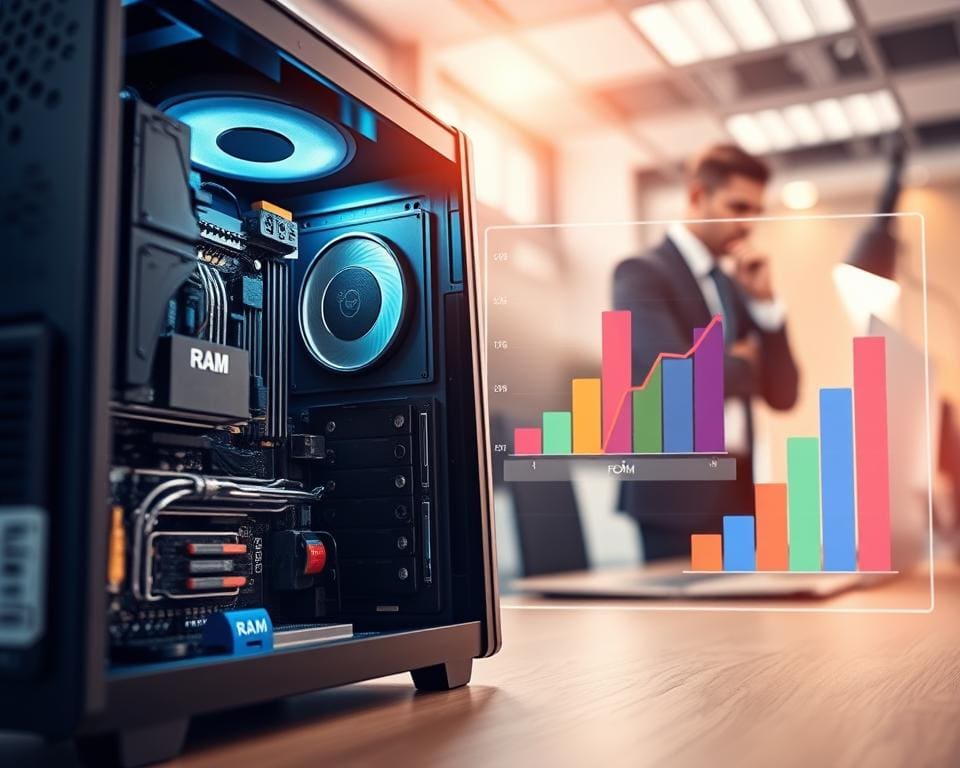
Understanding how hardware impacts performance begins with clear metrics. Responsiveness measures latency for simple tasks like web browsing or document editing. Throughput tracks work done over time, which matters for video encoding and large file transfers. Boot and load times affect daily use, while frame rates determine gaming and creative responsiveness.
These system performance factors map directly to real-world scenarios. A snappy laptop with a fast SSD and sufficient RAM makes office work feel effortless. Content creators and developers benefit from CPUs and GPUs that sustain heavy workloads. Gamers see gains from higher frame rates and lower latency.
Performance is rarely set by a single part. The interplay between CPU, storage, RAM, GPU and the motherboard — including PCIe lanes — dictates where bottlenecks occur. Upgrading one component can show diminishing returns unless supporting parts match the new capability.
Power delivery, thermal design and form factor are practical limits. Laptops from Dell or Apple must balance cooling and battery life, while desktops with components from Intel, AMD, Nvidia, Samsung and Western Digital can push higher sustained speeds. These real-world constraints shape the hardware upgrades impact you actually feel.
This article takes a product-review tone to help readers in the United Kingdom see hardware as an investment. You will find guidance to optimise computer hardware, clear comparisons among leading brands, and actionable advice on which upgrades deliver the biggest gains for your budget and workload.
How does hardware impact system performance?
The processor sits at the heart of responsiveness and throughput. It executes instructions, manages interrupts and switches contexts when the operating system juggles tasks. This central role explains why CPU performance influence matters for everyday apps and heavy workloads alike.
Single-threaded responsiveness shows how quickly one task completes. Multi-threaded throughput measures how many tasks run in parallel. Modern OS schedulers on Windows, macOS and Linux distribute threads across cores to balance latency and total work, shaping perceived speed during complex operations.
Processor (CPU) role in responsiveness and multitasking
Responsiveness hinges on clock speed and microarchitecture efficiency. A higher clock boosts single-threaded performance, which helps legacy apps and some games. CPU multitasking improves with more cores and threads, reducing queuing when you run browsers, virtual machines and editors at once.
Impact of core count, clock speed and architecture
Core count and frequency present a trade-off often framed as cores vs clock speed. Many new chips from Intel and AMD show gains in instructions per cycle, so an efficient core can outperform a faster but older design. Features such as AVX extensions accelerate specialised tasks.
Thermal design power and boost behaviour determine sustained performance under load. Mobile CPUs throttle sooner than desktop parts because of cooling limits. Product lines such as Intel Core i5/i7/i9, AMD Ryzen 5/7/9 and Apple M-series illustrate real differences in efficiency and raw speed.
Real-world examples: workloads that benefit from stronger CPUs
Some workflows favour high single-thread speed. Older software and certain game engines fall into that group. Parallel workloads scale with cores: video encoding in HandBrake, 3D renders in Blender and large code builds can see 20–40% faster throughput moving from four to eight cores in ideal conditions.
For database servers and virtualisation, added cores improve concurrency. When choosing a CPU for productivity, balance core count with clock rate and pick a recent microarchitecture for better IPC and power efficiency. Product reviews suggest prioritising newer architectures over chasing peak frequency unless your workload is strictly single-threaded.
Explore how hardware and infrastructure interact for a wider view on system design at hardware and infrastructure explained. This helps link processor choices to storage and networking that shape overall system behaviour.
Storage technology and system speed: SSDs, NVMe and HDDs
Storage choice shapes daily computing more than many expect. Mechanical hard drives, SATA solid-state drives and NVMe devices each bring distinct traits that alter responsiveness, transfer rates and long-term behaviour. Brands such as Samsung, Western Digital, Crucial and Intel lead development across these formats.
Difference between SATA SSD, NVMe and traditional HDD
Hard disk drives use spinning platters and magnetic heads. That design yields higher latency and limited IOPS when compared with flash. SATA SSDs replace moving parts with NAND flash and use the SATA III interface, which caps throughput at roughly 600 MB/s. NVMe drives connect over PCIe lanes and use parallel queues for far greater throughput and much lower latency.
SATA SSD vs NVMe matters when throughput and latency are critical. NVMe performance outpaces SATA by large margins. The gap in SSD vs HDD speed is obvious in benchmarks and in real use.
How storage affects boot times, application load and file transfers
Storage impact on boot time can be dramatic. Typical HDD boot times often sit in the tens of seconds or longer. A SATA SSD will commonly boot a modern system in under 20 seconds. NVMe drives frequently produce boot times under 10 seconds, subject to motherboard and firmware.
Beyond booting, application launch, file copy and swap responsiveness all improve as latency drops and throughput rises. Video editors and developers working with many small files see the biggest gains from NVMe performance. For office use, a SATA SSD still delivers a noticeable upgrade from an HDD.
Durability, lifespan and performance consistency considerations
Drive endurance is measured by metrics like TBW and MTBF. NAND type affects SSD lifespan: SLC and MLC offer higher endurance than TLC and QLC. Controller quality and firmware play a big role in sustained performance under heavy write loads.
Thermal throttling can reduce NVMe performance during intense tasks. Passive heatsinks or motherboard M.2 cooling help stabilise speeds. For archival needs, cloud storage or NAS remain practical complements to local SSDs and HDDs.
- SSD vs HDD speed: clear advantage to flash for responsiveness and random I/O.
- NVMe performance: best for large projects, video editing and heavy multitasking.
- SATA SSD vs NVMe: choose SATA for budget office upgrades, NVMe for demanding workloads.
- storage impact on boot time: moves from minutes to seconds as you step from HDD to SATA SSD to NVMe.
- SSD lifespan: plan by checking TBW, NAND type and controller design.
Memory (RAM) capacity and speed for smooth performance
Think of RAM as the fast, volatile workspace your PC uses to hold active apps and data. When that workspace fills, the system leans on much slower disk-based swap or paging. Users notice long waits, stuttered video or sluggish multitasking when swap becomes frequent. Understanding RAM capacity effects helps you avoid those slowdowns and keep workflows fluid.
Typical capacity guidance is simple. An entry-level machine runs on 8 GB. Mainstream productivity, light photo editing and browser-heavy sessions sit comfortably at 16 GB. Creators, developers running virtual machines or anyone handling large datasets should aim for 32 GB or more. Ask yourself how much RAM do I need based on the apps you use and the number of simultaneous tasks.
RAM speed plays a key role in responsiveness for certain workloads. Frequency (MHz), CAS latency and channel configuration determine effective bandwidth. Faster modules with lower latency reduce memory access delays and boost throughput. The RAM speed impact is most obvious on integrated GPUs, scientific computing and memory-bound applications.
Comparing DDR4 vs DDR5 matters when choosing parts. DDR5 brings higher peak frequencies and improved efficiency, though platform support varies across Intel and AMD chipsets. Upgrading to DDR5 can help bandwidth-hungry tasks, but you must check motherboard compatibility and CPU support before buying.
Look for clear upgrade indicators. Check Task Manager or Activity Monitor for sustained high memory utilisation. Heavy swap use or a sluggish machine with many browser tabs and apps open signals a need to upgrade. If responsiveness suffers under load, prioritise adding capacity rather than chasing small speed gains.
Practical tips for a smooth upgrade include matching kit speeds and using dual- or quad-channel kits for optimal throughput. Install matched modules from reputable brands such as Corsair, Kingston, Crucial or G.Skill to reduce compatibility headaches. Choose capacity first, then optimise speed when your workload benefits from extra bandwidth.
- Signs to upgrade: frequent swap activity, high memory peaks, slow multitasking.
- Installation tip: pair identical modules to enable dual-channel performance.
- UK buyers: search for “upgrade RAM UK” options that list motherboard compatibility.
Graphics hardware and visual performance for creative and gaming workloads
Choosing the right graphics solution shapes how you work and play. Discrete cards such as Nvidia GeForce and AMD Radeon bring dedicated memory and parallel compute power. Integrated options like Intel Iris Xe, AMD Radeon integrated and Apple M-series chips save space and power by sharing system RAM. This split defines the practical choice between GPU vs integrated for many users.
When to pick an integrated chip
Integrated graphics suit light editing, 1080p streaming and everyday design. They cut costs and extend battery life on laptops. For students, web designers and office workflows, integrated GPUs can be the sensible choice.
When a discrete GPU is the right move
Creators working with 4K timelines, complex 3D scenes or real-time previews need a dedicated card. VRAM importance grows with texture size and timeline complexity. A graphics card for creators offers the headroom required for high-resolution assets and smoother scrubbing in apps like Premiere Pro and DaVinci Resolve.
How VRAM, cores and drivers change results
VRAM capacity and bandwidth limit texture pools and cache sizes. Low VRAM forces downscaling or stuttering on large projects. Core counts — CUDA cores on Nvidia and stream processors on AMD — plus clock speed and architecture, affect render throughput. Drivers matter too; Nvidia Studio and AMD Adrenalin provide app-specific fixes and stability for creative software.
Encoding, ray tracing and power trade-offs
Hardware encoders such as NVENC and AMD VCN accelerate exports and live streaming without overloading the CPU. Ray-tracing quality depends on specialised cores and driver support. Laptop GPUs favour efficiency and thermal headroom while desktop cards deliver raw performance for sustained renders.
Choosing the best fit
- Match GPU to your target resolution and frame rate.
- Prioritise VRAM importance for 4K editing and large scene work.
- Check power supply, case size and cooling before upgrading.
Practical recommendations for UK buyers
For workflows that rely on CUDA-optimised apps, an Nvidia RTX card often gives the best acceleration. For cost-effective raster performance and improving driver support, AMD Radeon GPUs make strong choices. Search lists of the best GPUs UK to compare current models and prices.
Final thought
Balance your budget against real needs. A modest discrete GPU will extend creative capability more than an integrated chip when working with high-resolution projects. Assess whether a graphics card for creators or a gaming-focused model best matches your tasks before you commit.
System architecture and peripheral components that shape overall performance
The motherboard sets the boundaries for system architecture impact. Chipset capabilities, the number and version of PCIe lanes, memory slot configuration and NVMe M.2 support dictate upgrade paths and whether a fast CPU, GPU or SSD can reach its potential. Choosing a board with PCIe 4.0 or 5.0 lanes and ample I/O bandwidth ensures components are not starved by older interfaces.
Peripherals and subsystem quality also shape real-world speed. Storage controllers, SATA ports, USB 3.2, USB4 and Thunderbolt support, plus network interfaces such as Gigabit Ethernet, 2.5GbE and Wi‑Fi 6/6E, can become hidden bottlenecks. Even an excellent NVMe drive will be limited by a slow controller or insufficient PCIe lanes, so evaluate motherboard performance factors alongside chosen devices.
Power delivery and thermal management determine how long components sustain peak performance. A stable, efficient power supply unit matters — brands like Seasonic and Corsair are often recommended for clean rails — while case airflow and cooling solutions from be quiet! or Noctua can prevent thermal throttling. Passive designs suit low-power builds, but active cooling is essential for sustained workloads.
Firmware, drivers and OS settings complete the picture. Enabling XMP or DOCP memory profiles, keeping BIOS and drivers current, and using balanced power profiles let hardware perform as intended. A balanced approach — selecting compatible parts and prioritising motherboard performance factors, PCIe lanes, thermal management and power supply PSU importance — unlocks meaningful gains and can revitalise older systems or empower new creative work.